

Final Fantasy Dimensions first hit Japanese feature phones in 2010, but I remember it having some pretty significant launch hype with the wider/global iOS and Android in 2012. I played a non-insignificant part of the early story, but me and long-term mobile gaming sessions really don’t mix (never have, and never will) — as such, I dropped it.
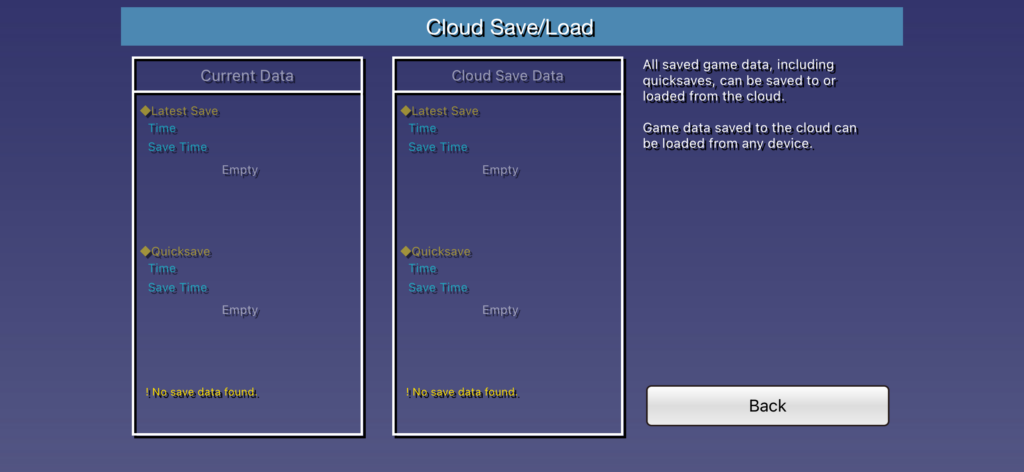
As a quick aside, it seems the game got cloud saves back in 2021(?!), but that was loooooong after I had abandoned it!
Over the years I’ve often thought back on the game, and I occasionally check to see if anyone’s done any crazy ports (or, these days, maybe even a recomp). There’s some work done with a quasi-Vita port (which actually runs an Android environment in the background?), but that seems to be about it.
Now that I’ve got this AYN Thor kicking around, Final Fantasy Dimensions came right back and sparked some additional questions. Can I just buy it outright these days (instead of piecemeal a la the iOS version I once tried)? Was it ever updated with controller support?!
The answer to the first question is a resounding “YES!” for Android (still piecemeal on iOS…?), and a resounding “NO!” to the controller support dream.
Well, OK. I like a challenge!*
(*All with the caveat that I’m not a programmer, have no real interest in programming, and I suspect that we’ll either get a hopefully-non-slopped-fan-made recomp with all the bells and whistles at some point, and/or a Final Fantasy Resonance reimagining.)
Let’s assume you’re starting from scratch here (as I effectively am). I have my AYN Thor (or maybe a similar Android device), and I want to (1) acquire the game, and then (2) see what I can do to get any kind of native controller support.
The game is indeed (still) available, but you can’t actually purchase anything from the Google Play Store until you have an Android device associated with your account.
Sign in to the Google Play Store on your AYN Thor to associate the device with your account. Maybe you’ve associated a device before, in which case you don’t necessarily need to do this step in order to buy the game, although you’ll have to do so anyway to download the game so you might as well.
You might get a “Something went wrong” loop trying to sign in on the Thor — I ran into this problem, and it seems a lot of other people did (and do) according to my Google-fu. If this happens, reboot your Thor by holding the power button for a couple seconds and selecting “restart” — this isn’t a wipe or factory reset (so don’t worry about any data), but rather just a normal system reboot. I was able to sign in no problem after doing this. Not sure why, but it fixed it!
Either on a desktop or on the Thor itself, once signed in, head to the game’s entry on the Google Play Store. Its regular, full MSRP is $11.99. Purchase the game. You should be able to select your Thor as the install location now that you’ve associated the device with your account, in which case it will automagically download and install right away.
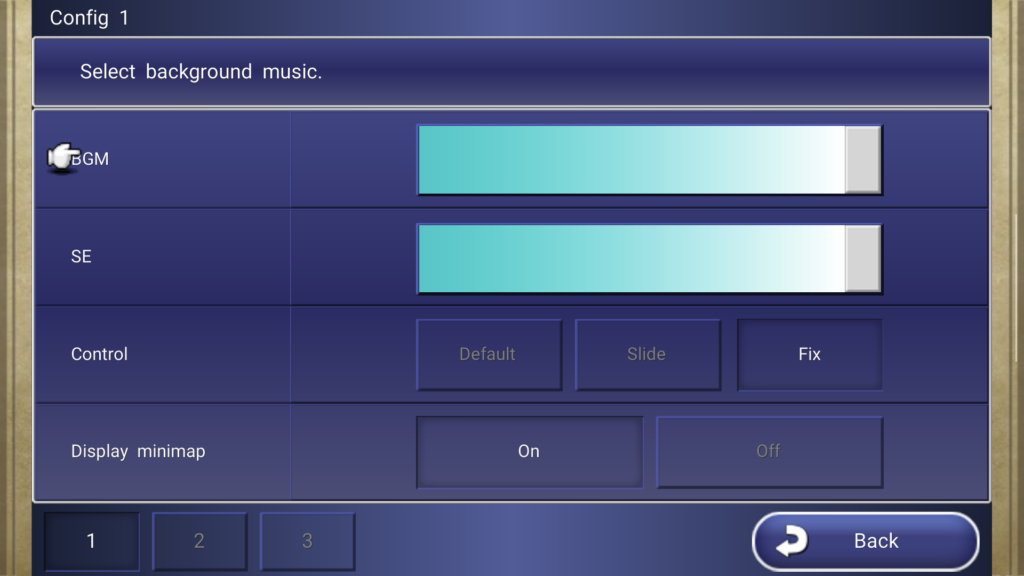
Launch the game. Play a little ways in at the beginning (yes, using tap controls on that screen!) in order to get to a spot where you can load up the in-game menu — being on the overworld map will be helpful for the next couple steps. Tap the “Menu” button in the top right, then select “Config” and tap “Control” to change it over to “Fix” — this will put a semi-transparent control pad on screen.
Head on back to the main overworld screen as if you were going to continue playing. Slide in (with your finger) from the right side of the top Thor screen to get a quick menu, and tap Key adapter.
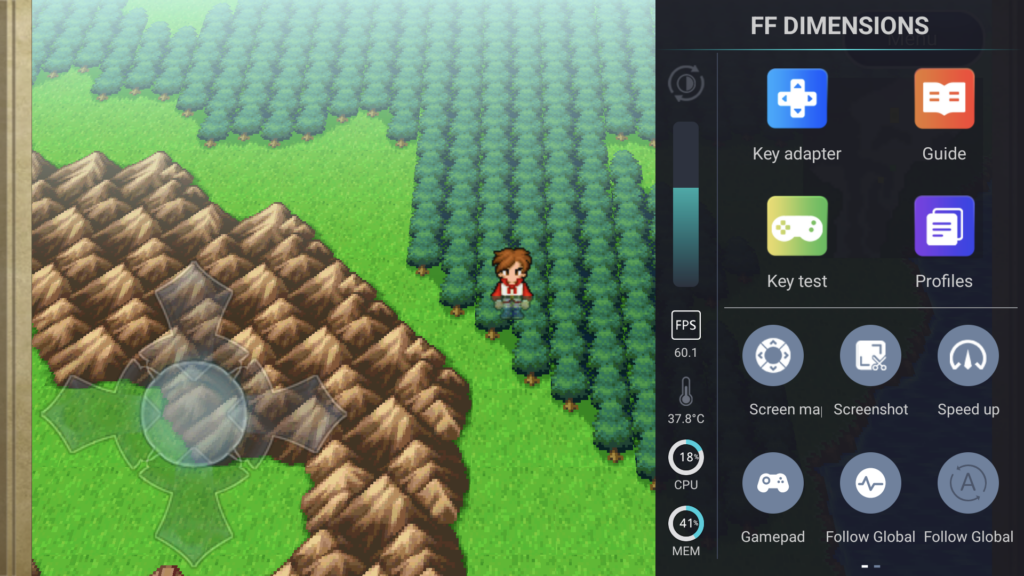
Drag the second icon (a control stick) down over top the new control pad on screen. You can drag the circle again to place it a little more perfectly centered. Press the blue check mark on the right side of the “New FF DIMENSIONS config” mini-menu to save your controller setup progress.
Congrats! At bare minimum, you now have analog stick control over your character on the overworld and town maps. This is already an incredible improvement.
You might want to do a quick save from the game’s main menu, since we’re heading into battle and need time to drag items around on screen while the ATB gauge keeps going (meaning the enemies will keep attacking you). It might also be helpful to keep playing a little more until you have a larger party, which will buy you even more time.
Next up we want to see how many buttons we can logically and conveniently set for battles — we’re not going to have directional pad or analog stick control, so button presses will need to map to physical locations on the screen to act as if we’re tapping them.
Wander the overworld map, get into a battle, and drag over to get back into Key adapter.
Drag that first circle icon so it’s horizontally- and vertically-centered over (so right in the middle of) the “Attack” menu space. While still active with that circle you’ve dragged on screen, press whatever button on the Thor’s controller you want to assign to it. Repeat this process for the next few spots. I chose to go down the list with the X, Y, A, and B buttons in that specific order (kinda going top-to-bottom, left-to-right down the face buttons). You do you, as long as you know what they’re going to correspond to. Tap that blue button to save your settings.
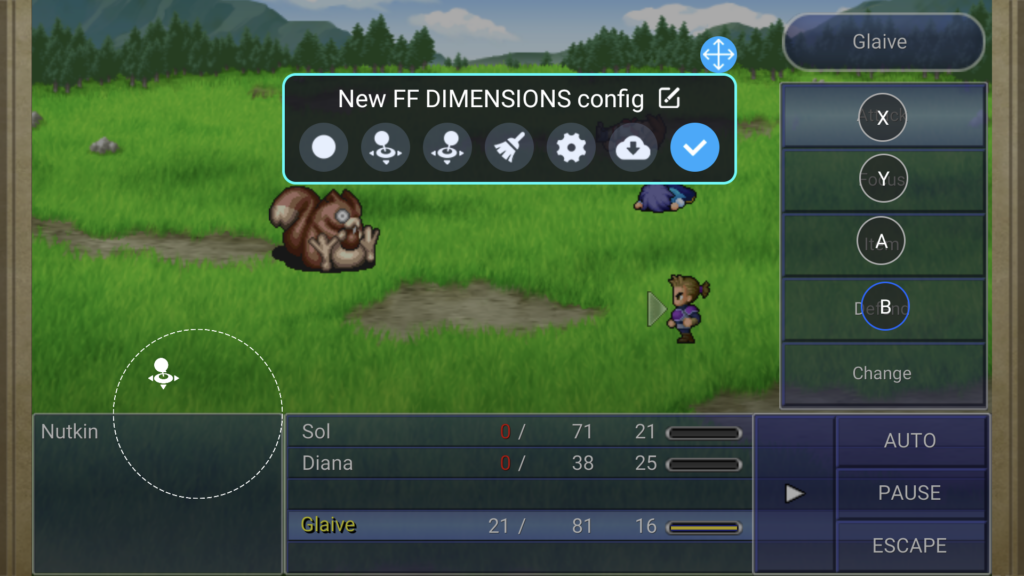
I kept the button assignment draggings like so, because I want them to double-up for some other actions and selections.
For example, when you select the “Attack” menu item (by pressing the “X” button as I have it assigned):
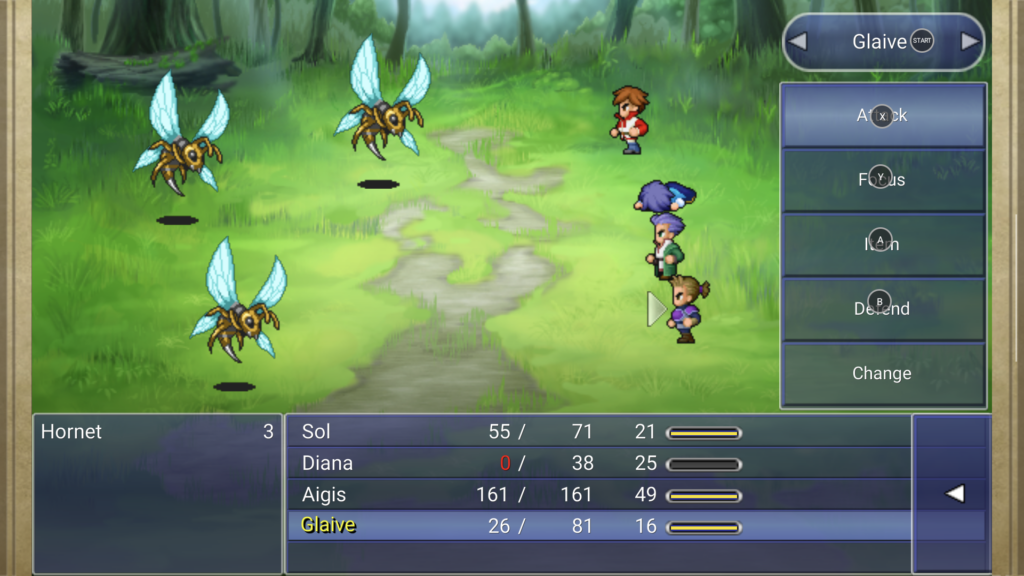
…you’ll see that the face buttons perfectly double-up as selections for which enemy to attack (in this example, the different hornets):
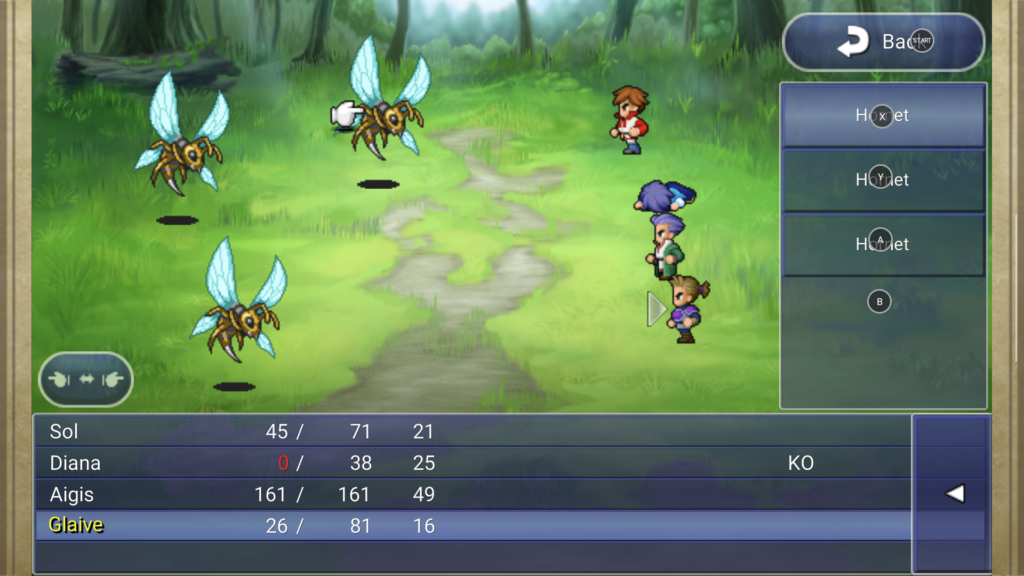
You can actually set the individual Key adapter buttons to either be visible at all times, or hide them (slide back out the Key adapter widget and edit the options with the settings gear appropriately). While it’s not the most elegant UI, it’s helpful to see and refer to the actual buttons at a quick glance, especially in battle — that said, I did set the analog stick to be hidden since that part is pretty obvious. I also went ahead and then set the equivalent of the “Start” button (the little circular triangle “play”-ish button above the four main face buttons) and assigned that up in the “Menu” area… which I may also set to be hidden the more I toy around with it all.
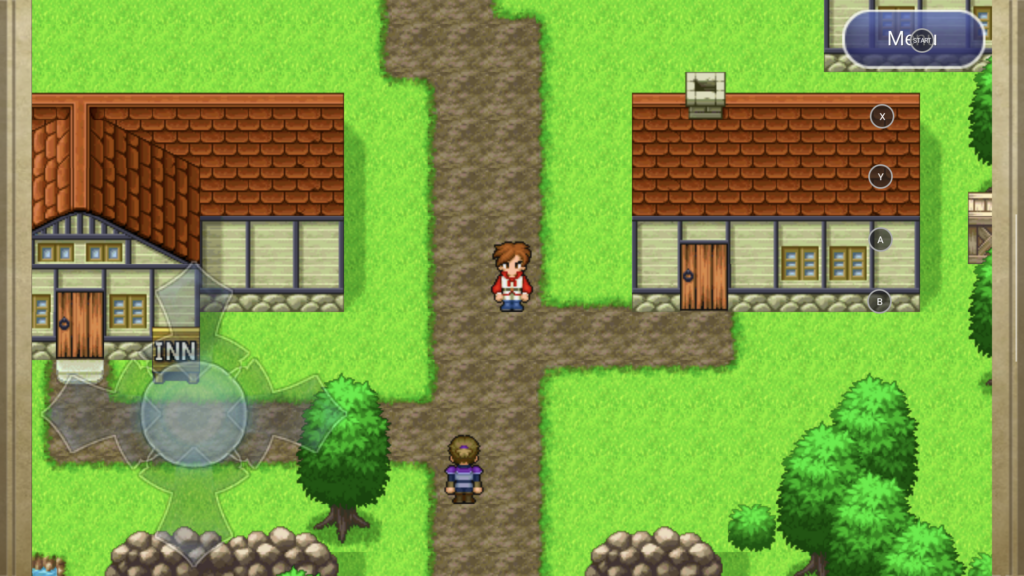
Speaking of that “Menu” option, what this all doesn’t get us is robust menu navigation with the directional pad or analog stick. That seems like it’s a major hurdle that Key adapter can’t/won’t handle, and would probably require some deeper modding or otherwise reprogramming.
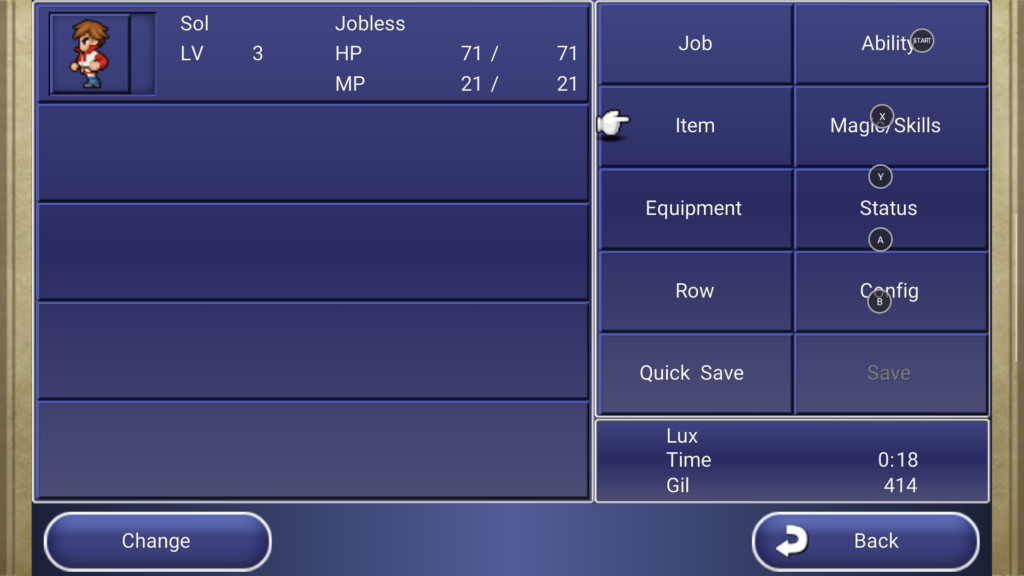
You’ll see once we’re in the main menu, some of the prior buttons sorta correspond to and overlap with at least the right-most side of options, but we can’t just tap up on the pad and get to the “Job” menu item, for example.
At least for the purposes of just playing the game a little more normally, these minor Key adapter additions have taken us a long way:
- We can use the analog stick to walk around! Overworld and town! Hurray!
- We have buttons that largely map to the most important battle selections.
- Since a tap on-screen anywhere acts as a “proceed” kind of selection for things like talking to other characters, we’re no longer stuck tapping the screen to proceed — we can just press a physical button during conversations like any other game.
Our biggest hurdles so far at this setup?
- The main menu is basically unusable without tapping.
- Some UI elements aren’t assigned or accounted for with this very basic face buttons setup (although you can experiment and add others if you want). For example, “B” in this setup is incidentally roughly mapped to “Yes” on some character dialog menus, but there’s nothing set to “no” (yet).
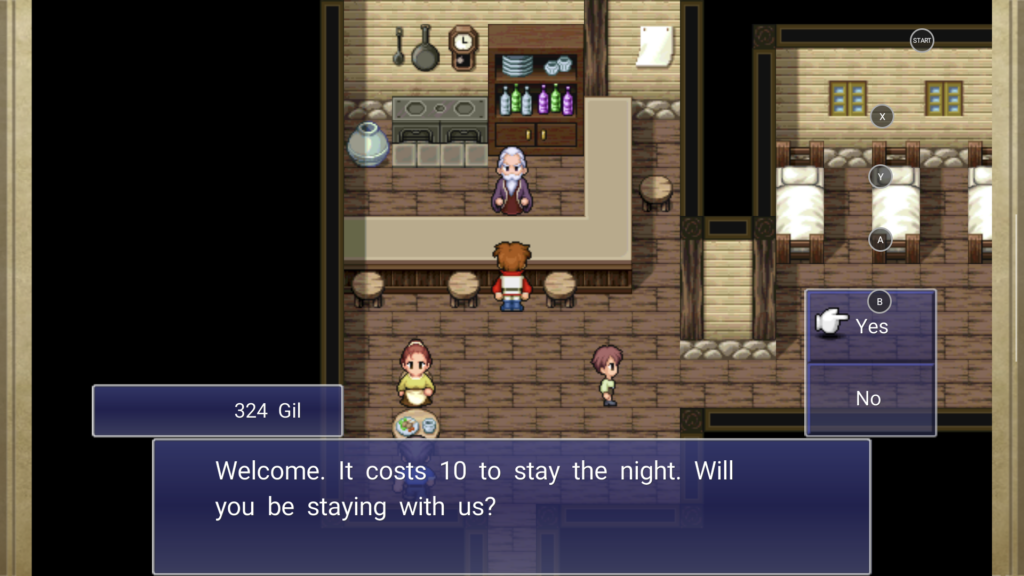
So what’s next?
I’m literally only something like 10 minutes into the game, so it’s hard to say right now just how far this all will take me… but it feels pretty significant. The game runs great on the Thor at its full 1080p (as should be expected for a 14-year-old game!), and we have the most important of controller support roughly assigned, all right out of the box with the Thor’s normal programs and functions — there is nothing external to install, other than the game itself.
It will be interesting to play a little more and see what else feels natural to map. Will I use the L and R buttons for anything? Will I find any use for the directional pad?
Is this it…? Am I finally going to play through Final Fantasy Dimensions…?! Hard to say for sure, but the odds have never been better.
Be the first to comment