

The existence of CHD files is probably one of my favorite advancements in the emulation scene. Same data, but saving space? Awesome!
If you’re unfamiliar, the long and short is that you’re generally taking the old-school .BIN/.CUE files from a CD rip, and you’re “zipping” them into the new .CHD (“Compact Hunks of Data”) format/container/whatever instead through the chdman tool. Same data, lossless compression, single file, ready to go.
It’s a fairly straight-forward process on Windows, because you can just download the tools into a folder with a game, click a script, it just runs and does its thing, and then you have a new .CHD file. You kinda don’t even really need to know what’s it’s doing.
It’s only slightly more involved on Linux, but since that’s my main daily driver, I wanted to make sure I knew what I was doing… and that it was easy to do so! You can do it, too! For whatever it’s worth, right now I’m running Linux Mint, but I imagine it’s gotta be relatively seamless across other distros.
STEP 1: Get Your BIN/CUE
You’ve ripped your game, and you have a .BIN file and a .CUE file (or maybe a bunch of BINs). Great; that’s the easy part!
STEP 2: Install mame-tools
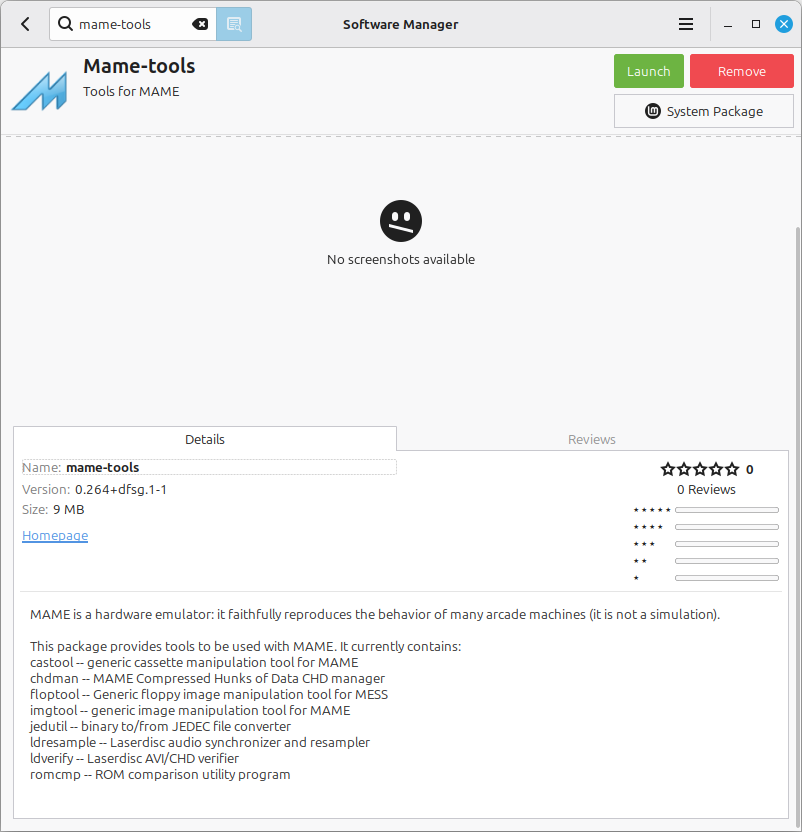
Look for and install mame-tools from your package/software manager, or install it however you see fit. This package includes chdman, which is the actual tool that does this compression we’re looking for.
STEP 3: Your Folder and a Terminal Window
Within your file manager (Thunar, here in my case with Linux Mint), navigate to the folder where you have your game’s .BIN and .CUE file(s); for simplicity’s sake, let’s just go with a single game here in a single location. Right there in the window, just right-click anywhere in the empty space and select: Open in Terminal
STEP 4: Run the Script
Here’s an example of what you should dump in there as text to get a single game converting. Note that I actually did include quotation marks around the game title; that’s so you can include spaces in the file name (and otherwise you’ll get that bash: syntax error near unexpected token `(‘ error that you actually see first in my screenshot below):
chdman createcd -i “Emerald Dragon (English v1.0).cue” -o EmeraldDragonEnglish.chd
Obviously if you’re not converting Emerald Dragon, don’t write “Emerald Dragon (English v1.0).cue” there; write the name of the game that you’re looking at in your folder!
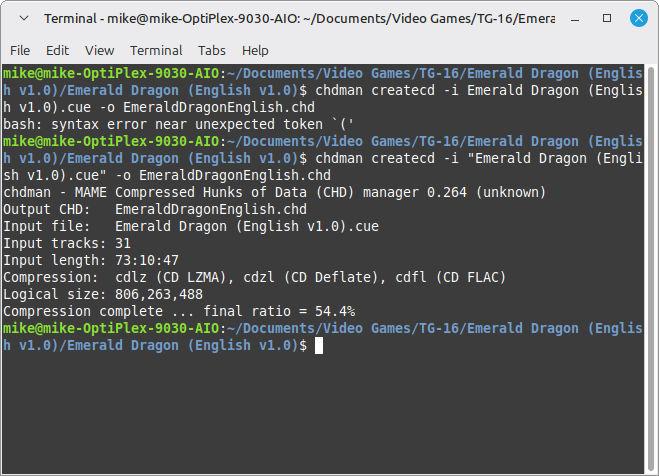
In case you’re curious (and you should be!):
- the chdman there is the name of the tool we’re using (and we’ve already specifically clicked into a terminal window in the right folder; otherwise you’d have to navigate to it in the terminal window prior to this)
- the createcd there is telling chdman that we’re making a CD-ROM image file
- the -i there is specifying the input (the .CUE file)
- and on the flip side, -o there is specifying the output (the .CHD file)
- the quotation marks allow you to use/recognize/bypass spaces in a filename, so use them appropriately for the input and/or output if necessary and you desire to do so
Look at that — we just took Emerald Dragon for the PC-Engine CD from ~740 MB down to ~420 MB!
Be the first to comment